Digital Taxomony

  • Web 2.0 TOOLS -PIP CLEAVES and Blooms Taxonomy -Prezi

http://prezi.com/gxgypkp67mka/blooms-digital-taxonomy-and-web-2-tools/

This is the most motivating and practical information that I initially found that helped to improve the use of ICT in the classroom. Give it a go!

In 1 year I had used or explored all of the following Web 2.0 tools.

Remembering Understanding Applying Analysing  

Evaluating


Wall Wisher Tag Galaxy A Maths Dictionary for kids Exploratree Rubistar
Lino It Slide Share Story Starter Google Earth VoiceThread
Floor Planner Wikispaces Read write Think SurveyMonkey  
Google be nice, highlight Penzu Wordle  
Spelling City.com bubbl.us      
Creating  

Effective Web 2.0 Tools


Prezi


Time Toast
Animoto


Blabberise
Creaza


Keynote as animation
Storybird


Penzu
MagMyPic


Wix


Joommag


Weebly


Google Apps For Education

Using your school Gmail account you can access more apps than your personal gmail has.

Google Drive- Excellent for your Professional Learning Team to plan on shared Google Docs and them organise your work and folders in drive.

Google Docs- Children can share you in to view, comment or edit their work. We tend to get the children to share us in as ‘Can Comment’ so we can give suggestion for improved learning outcomes but it is still totally up to the student to edit and improve work.

Google Sheets- Same as excel or numbers with the same sharing functions as other Google Apps.

Google Slides- A fresher more professional new look instead of powerpoint and keynote. Children can share another partner or team members to collaborative work online together.

GoogleSites- The children have had a taste of running their own website. We had used it all year. Initially it was a way to get to know about the students and their interests and hobbies. As the year went on we have used it for reflecting on their learning, reviewing the term for parent teacher interviews, setting SMART Goals, rating their success and Inquiry learning summaries.

screen-shot-2016-09-27-at-5-43-57-pm

Here is a link from Sandhurst CEO have a site that has all sorts of information and resources related to that particular Google tool or other Google Products/Projects for teachers and students to use.

https://sites.google.com/a/ceosand.catholic.edu.au/sandhurstgafe/

There are many other tools to explore once you have mastered the above core tools.

Screen Shot 2016-09-27 at 6.04.20 pm.png

Prezi

imgres

Prezi is an amazing tool for presenting ideas on a virtual canvas.I have introduce this to my Year 5/6 students and they have enjoyed the power of this form of presentation. It is easy to learn by looking at existing prezi’s by clicking on the ‘Explore’ button. Then when you want to make your own you can use a template and click the ‘Learn and Support’ button. Then watch the first three tutorials on getting started and my first prezi.

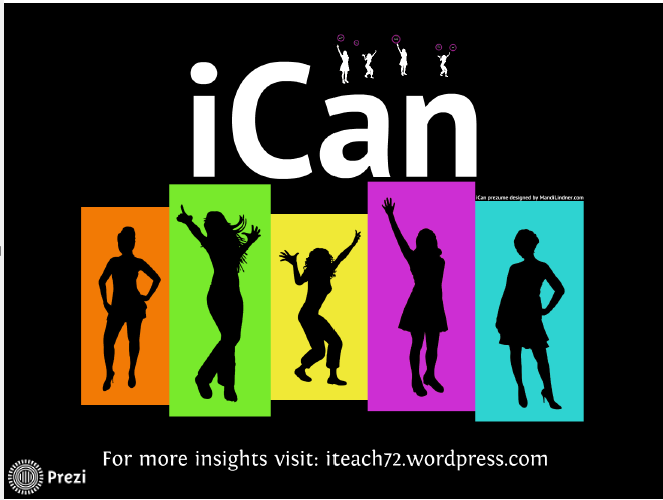
I have really enjoyed this software and recently worked on an template for a fresh look at presenting my resume. It is call a prezume. I adapted the iCan Prezume template by http://www.mandilindner.com

Here is the link to my Digital Portfolio iCan Prezume

https://prezi.com/embed/9ai38sfxhnwv/

Screen Shot 2015-10-14 at 8.15.13 pm

Evernote Forever!

Setting a goal is a great way to ensure that you follow through with a commitment to improve the quality of your teaching. I attended an ICT inservice and sat at the wrong table for workshop 2. The presenter was so happy that I was there because only one other person was booked in. Of course I felt compelled to stay. I am so glad I did because this was the workshop that inspired my passion for Web 2.0 Tools and changed how I organise my digital files forever.

Evernote is a personal online storage space that is like your digital memory. The most useful feature for me is the web clipper that tracks or ‘clips’ the websites that you want to remember and return to easily later. There are many tutorials on youtube to help you get inspired to learn this useful app. An easy to follow podcaster called Michael Hyatt has a 12 step ‘How to use …’ that is very handy to listen to and will give you confidence to learn its many features.

On that day I set a goal to persevere with this free app and see where it takes me. What was to follow inspired my teaching forever. So sign up now for the basic free package, download the Evernote web clipper and give it a go.

https://evernote.com/

Screen Shot 2015-09-03 at 9.09.42 pm

Where to start with Web 2.0 Tools???

Starting with a goal of embedding quality ICT tools and apps into your daily program it is best to start slowly by choosing one tool you would like to explore. Begin by downloading or signing up for the tool and then play. Each site has a lot of support and tutorials for ease of use and instant success.

I started with Animoto for a personal project and was surprised at how easy it was to use this video creation tool to create and share videos using my own pictures, video clips, words and music. I enjoyed it so much that I got a little bit distracted for a couple of weekends.

Now I had this application in my tool kit as one way to extend our Independent Learning Group as a new way for the students to present their learning. In the educational setting it was used as a way for the School Captains to present their research of the History of our School Leaders to present at the Annual School Board Meeting. Students then started to include this as an alternative way to present a slide show and keynotes.

For a tried and true list of Web 2.0 Tools see drop down menu.

Remember start with just one Web 2.0 Tool and do it well.